
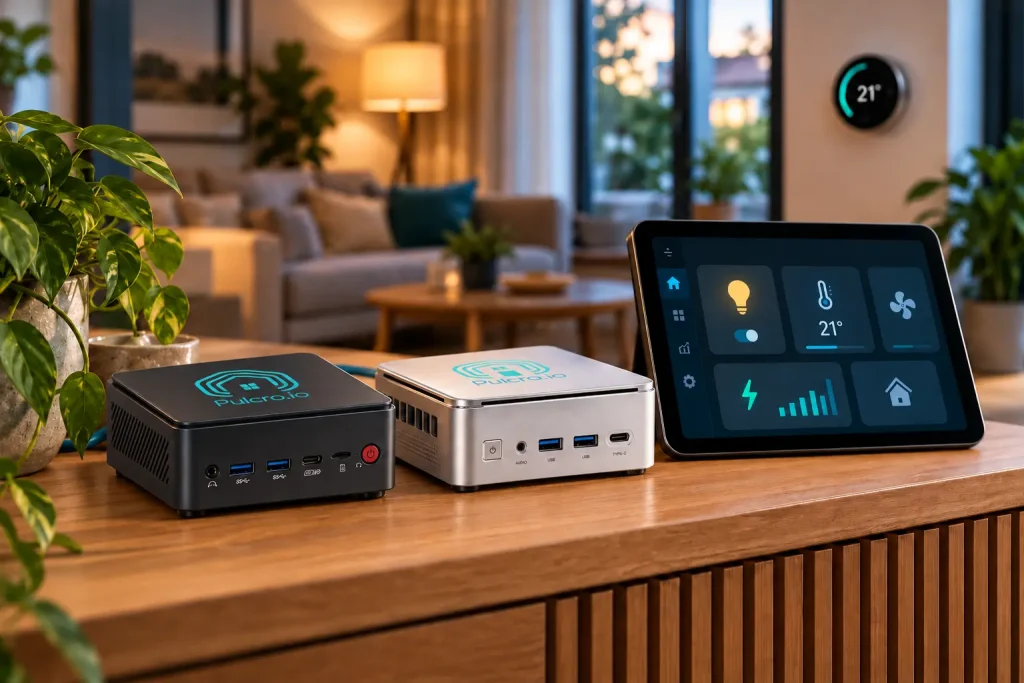
Choosing a Home Assistant mini PC is easier when you know which specifications will actually make a difference to your smart home. Whether you are buying your first system or moving from a Raspberry Pi, the priorities are straightforward: enough processing power, dependable storage, sufficient memory, and a reliable network connection.
For everyday automations, dashboards, lighting, sensors, and integrations, a sensible starting point is a capable quad-core processor, 8GB of RAM, a 256GB SSD, and wired Ethernet. These are practical buying recommendations, rather than Home Assistant’s minimum requirements.
The other question is what happens later. Can you replace the memory, expand storage, or connect a Zigbee or Z-Wave adapter without replacing the entire computer? This guide explains what to look for and why the Pulcro TurnKey Node is our choice for buyers who want to start with a configuration that fits their budget and keep their options open.
What Should You Look for in a Home Assistant Mini PC?
Use this checklist when comparing systems for a typical smart home.
| Component | Practical starting point | Why it matters |
|---|---|---|
| CPU | Capable 64-bit quad-core processor | Room for automations, integrations, updates, and background tasks. |
| RAM | 8GB, preferably replaceable | Comfortable headroom for ordinary use and a few supporting services. |
| Storage | 256GB internal SSD | Space for software, history, updates, and local backup copies. |
| Network | Wired Gigabit Ethernet | A consistent connection without depending on wireless signal quality. |
| Expansion | Spare USB ports and accessible memory/storage | Add compatible radios and upgrade components as needs change. |
| Software | Home Assistant OS | A straightforward starting point for a dedicated automation server. |
You can run Home Assistant on smaller systems. The aim here is a comfortable purchase with room to grow, while keeping spending proportionate to the work it will do.
CPU: How Much Processing Power Does Home Assistant Need?
The processor handles automation logic, integration updates, and other work running on the server. A faster processor can help with demanding tasks, but routine smart home control rarely calls for a high-end desktop CPU.
For a first installation, prioritize a compatible, capable processor and a balanced system. Spending heavily on the CPU while accepting soldered memory or limited storage expansion can leave you with fewer useful upgrade options.
Both Intel and AMD processors can be suitable for Home Assistant. Choosing a TurnKey Node with Home Assistant OS preinstalled gives you a prepared system without having to create an installer or configure the operating system yourself.
Buy for the Work You Expect to Run
Automating lights, adjusting thermostats, monitoring sensors, and serving dashboards are a different workload from analyzing several camera feeds or running local speech recognition. If those heavier projects are part of your near-term plan, review their hardware acceleration and compatibility requirements before choosing a processor.
For everyday automation, a capable entry configuration is a reasonable place to start. Remember that the CPU in many mini PCs is fixed to the motherboard, so choose your processor tier with your likely future workload in mind.
RAM: Is 8GB Enough, or Should You Choose 16GB?
RAM is the working space used by Home Assistant and its supporting services. For ordinary automations and dashboards, 8GB is a practical starting recommendation. Choosing 16GB provides extra room if you expect to add more services or simply want additional headroom.
- 8GB: A sensible budget choice for a dedicated system handling everyday smart home tasks.
- 16GB: More flexibility for additional services and a growing installation.
- 32GB: Worth considering when you have a specific larger workload, such as multiple virtual machines.
More RAM does not automatically make an otherwise comfortable system faster. Once the workload has enough memory, additional capacity may remain unused.
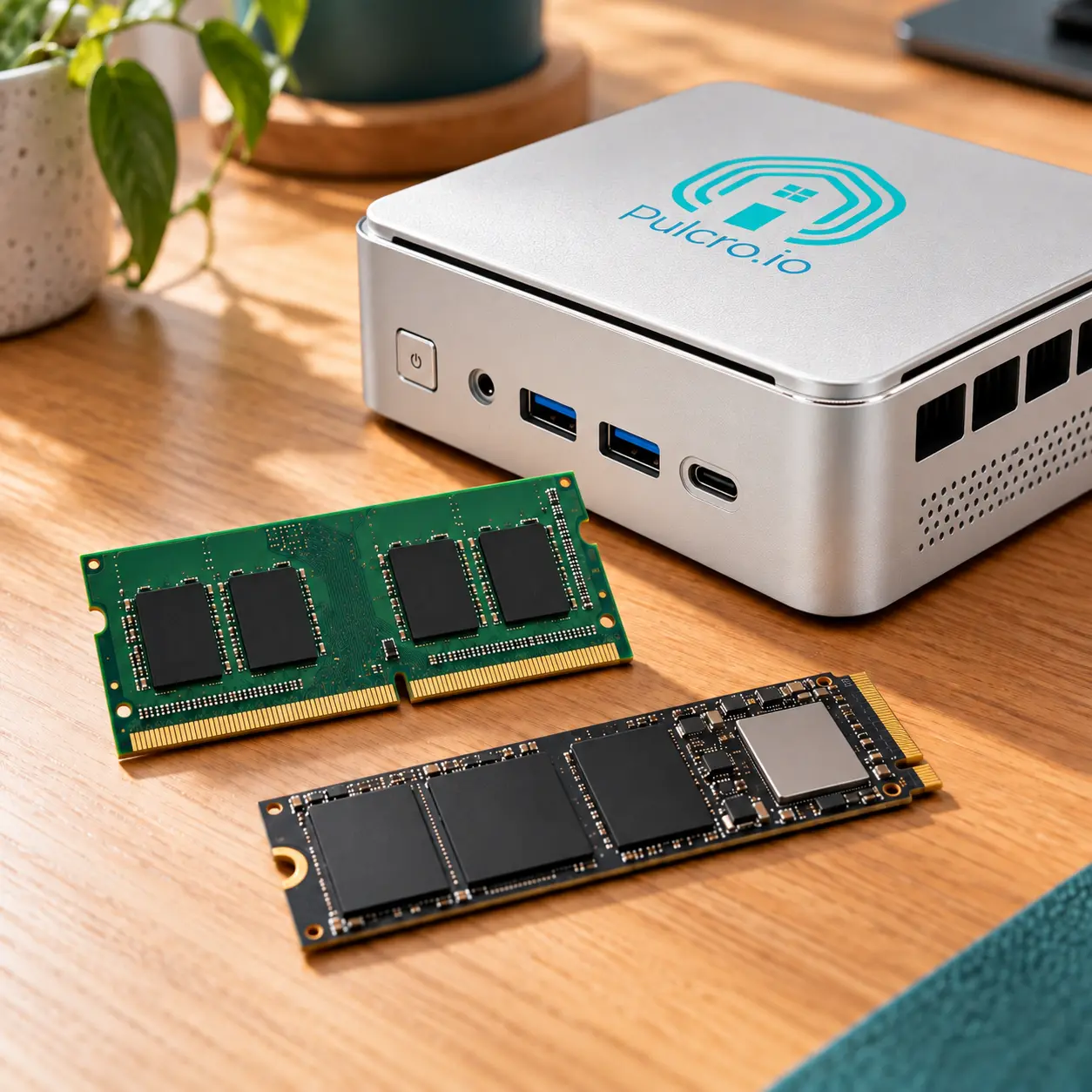
Look for accessible SO-DIMM slots if future upgrades matter to you. With soldered memory, the capacity you buy may be the capacity you keep. With replaceable modules, you can upgrade when your usage justifies the expense.
SSD Storage: Choose Capacity and Serviceability Over Headline Speeds
Home Assistant stores configuration, device history, logs, and other data. Its storage needs depend on how many entities you record, how frequently they change, and how long you retain their history.
A 256GB SSD gives a typical dedicated setup useful breathing room. A 512GB drive offers more capacity if you expect to retain more data or run additional services. Regularly review disk usage rather than assuming any drive will last indefinitely without housekeeping.
SATA vs. NVMe for Home Assistant
Both SATA and NVMe SSDs can be suitable. NVMe offers higher potential throughput, but everyday automations rarely benefit from the headline transfer speeds advertised for premium drives. A compatible SATA SSD can serve this workload well.
M.2 describes a physical format; it does not guarantee that a drive uses NVMe. Check the slot’s supported interface, drive length, and boot compatibility before purchasing an upgrade.
If your Raspberry Pi currently uses a microSD card, moving to internal SSD storage can be a useful upgrade. A Raspberry Pi can also use SSD storage, so compare the complete setup rather than assuming every Pi installation has the same limitations.
Whichever storage you choose, keep backups somewhere outside the computer. An SSD, including a second internal drive, does not protect against every failure or accidental deletion.
Ethernet vs. Wi-Fi: Give Your Smart Home Server a Wired Connection
A Home Assistant server stays running around the clock. Wired Ethernet is our recommendation because it removes wireless signal strength, radio congestion, and access-point roaming from the server’s connection path. Gigabit Ethernet is ample for ordinary automation traffic.
Wi-Fi can work where cabling is impractical. However, built-in Wi-Fi should sit below memory, storage, and expansion on your buying checklist when you can connect the server by cable.
Why Connecting Both Ends by Wi-Fi Uses More Airtime
Consider a Wi-Fi smart device sending an update to Home Assistant and Home Assistant sending a command back. If both the device and server connect wirelessly through the same access point, that exchange can involve four wireless legs:
- Smart device to access point.
- Access point to Home Assistant.
- Home Assistant back to access point.
- Access point back to smart device.
When both use the same 2.4GHz channel, those transmissions compete for shared airtime. The access point has to receive and retransmit traffic between the wireless clients. In an apartment complex or a neighborhood with many nearby networks, that adds avoidable traffic to an already busy band.
Connect the Home Assistant mini PC by Ethernet, and the two server-side legs travel over the cable instead. Your smart device still uses Wi-Fi, but the server no longer needs wireless airtime for its part of that exchange.
This is a simplified example of a device update and return command, not a fixed four-transmission rule for every automation. Different bands, multiple access points, mesh backhaul, and retransmissions can change the wireless path. For a server that stays in one place, Ethernet is a practical way to reduce unnecessary wireless traffic.
Can an Ethernet-Connected Mini PC Control Wi-Fi Devices?
Yes. Your smart plug or light connects to your wireless access point, and Home Assistant communicates with it through the network using a supported integration. The server does not need its own Wi-Fi connection to control Wi-Fi devices.
Network isolation and firewall rules still matter. A device on a guest network or separate VLAN may need additional configuration before Home Assistant can discover or reach it.
A wired server also cannot keep every device available during an access-point outage. Your Wi-Fi devices still depend on their wireless network. Ethernet simply makes the server’s own connection less dependent on that wireless link.
Bluetooth, Zigbee, and Z-Wave: Add the Connections Your Devices Need
Bluetooth serves a different purpose from the server’s network connection. It can connect compatible Bluetooth Low Energy sensors and other supported devices. Check Home Assistant compatibility rather than choosing a computer solely because it advertises a newer Bluetooth version.
A remote Bluetooth proxy can place Bluetooth coverage near your devices while the mini PC remains beside your router or switch. This can be useful when the server sits in a utility room or cabinet. If you are unsure which accessories fit your plans, ask Pulcro for help choosing a compatible setup.
For Zigbee or Z-Wave, plan for an appropriate supported coordinator or controller. Built-in Wi-Fi and Bluetooth do not replace those radios. Matter devices using Thread also need suitable Thread border-router infrastructure.
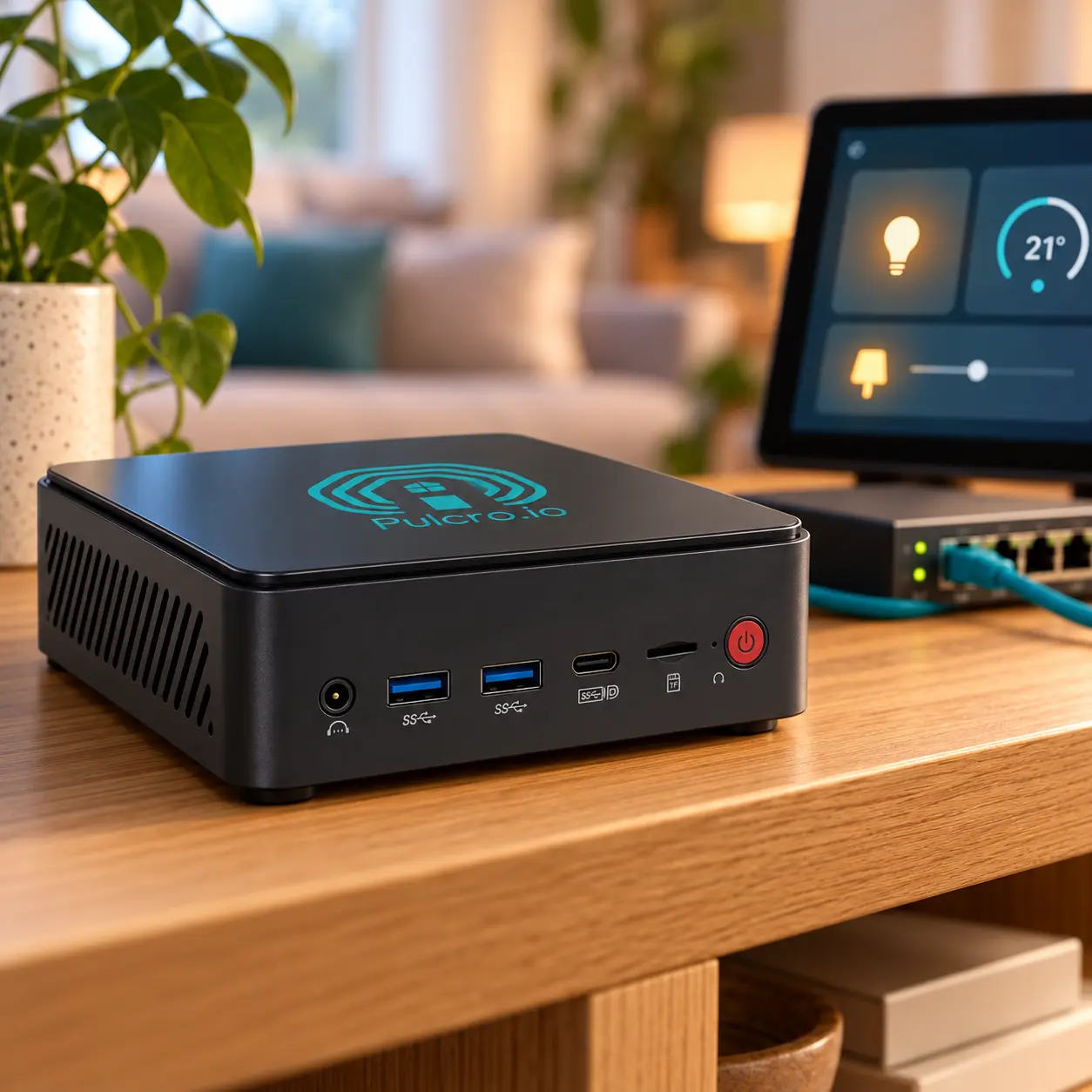
This makes spare USB ports useful. You can connect compatible adapters as you add device types, rather than buying every accessory on day one. Position radios thoughtfully, following the adapter manufacturer’s placement guidance and using extension cables where appropriate.
Choose a Setup That Matches Your Experience
For a dedicated smart home computer, Home Assistant OS is the recommended installation type for most users. It reduces the amount of underlying operating-system administration you need to handle.
Virtualization can be useful when you want several services on one computer, but it introduces more setup and maintenance. Beginners focused on home automation can start with a dedicated Home Assistant OS installation.
Moving Home Assistant from a Raspberry Pi
You can generally move an existing installation using Home Assistant’s backup and restore workflow:
- Create a current backup and download a copy outside the Raspberry Pi.
- Keep the backup emergency kit or encryption key available if required.
- Start Home Assistant on the new system and use the restore option during onboarding.
- Move any required USB radios, then verify integrations, device paths, dashboards, and automations.
Keep the old hardware available until you have checked the restored system, but avoid running both copies of the same automation setup simultaneously.
Remember Power Use, Cooling, and Recovery
Compare measured whole-system power consumption where available. A processor’s power rating and the wattage printed on the power adapter do not tell you the computer’s actual electricity use.
Allow ventilation around the case and choose a location where fan noise will be acceptable. Automatic startup after power restoration is also useful for an unattended server. A small UPS can help bridge brief power interruptions, while off-device backups help you recover if the system needs rebuilding.
Support and warranty coverage deserve a place in the comparison too. For a first-time buyer, clear setup instructions and accessible help can be as valuable as another specification on the product page.
A Complimentary Plan B for Learning and Experimenting
Learning a new platform means trying things, changing settings, and occasionally needing a fresh start. That is why we include the Pulcro Plan B Recovery partition complimentary with your TurnKey Node.
On supported systems, Plan B restores the factory software originally supplied, giving you a route back to a clean starting point if something goes wrong. It requires a wired internet connection with DHCP, a monitor, and a keyboard.
Recovery erases the target drive. Keep a current Home Assistant backup outside the mini PC so you can restore your own settings and automations afterward. Plan B reinstalls the supplied software; your backup preserves the smart home you have built.
Why Choose the Pulcro TurnKey Node for Home Assistant?
The Pulcro TurnKey Node brings these buying priorities together: configurable hardware, Home Assistant OS availability, and room for compatible upgrades.
Choose an AMD R2314, AMD R2514, or Intel Core i3-1215U processor, with 8GB, 16GB, or 32GB memory options and 256GB or 512GB SSD configurations. Two SO-DIMM slots and two M.2 storage slots provide upgrade flexibility. Gigabit Ethernet, Bluetooth 5.2, and six USB Type-A ports support wired networking and compatible accessories. US-based support and a 24-month limited warranty round out the package.
For everyday automation, our suggested starting configuration is the R2314 with 8GB RAM, a 256GB SSD, and Home Assistant OS. Choose 16GB if you want more headroom from the outset. These are buying recommendations, not benchmark guarantees.
Select your processor at purchase, then expand compatible memory, storage, or USB accessories as needed. Check drive interfaces and available slots before ordering upgrades.
Build Your Home Assistant Mini PC Around Your Budget
Choose your processor, memory, and storage, with Home Assistant OS preinstalled and a complimentary Plan B Recovery partition for a fresh start when you need one.
Home Assistant Mini PC FAQs
Is a Mini PC Better Than a Raspberry Pi for Home Assistant?
A mini PC can offer more processing headroom, replaceable memory, and convenient internal storage. A Raspberry Pi remains suitable for many installations. Moving makes sense when you want those hardware options, more capacity, or a prepared system.
How Much RAM Should a Home Assistant Mini PC Have?
For the everyday workloads covered here, we recommend starting with 8GB. Consider 16GB for more supporting services. These are practical purchase recommendations; your actual requirements depend on what you run.
Do I Need an NVMe SSD for Home Assistant?
No. A compatible SATA SSD can work well for routine automation. Prioritize suitable capacity, compatibility, and backups before paying extra for maximum transfer speed.
Does Home Assistant Need Wi-Fi?
The server can use Ethernet while controlling supported Wi-Fi devices through your home network. Bluetooth, Zigbee, Z-Wave, and Thread have separate connectivity requirements.
Can I Upgrade My Home Assistant Mini PC Later?
That depends on the computer. Check for replaceable RAM, supported storage slots, and spare ports before buying. Processor upgrades are usually limited, and every added component still needs compatible hardware and software support.
Still Need Help Choosing Your Home Assistant Mini PC?
Whether you’re starting fresh or upgrading from a Raspberry Pi, we can help you choose a Pulcro TurnKey Node configuration that fits your needs and budget. Contact our team for friendly, practical advice on your next smart home setup.