

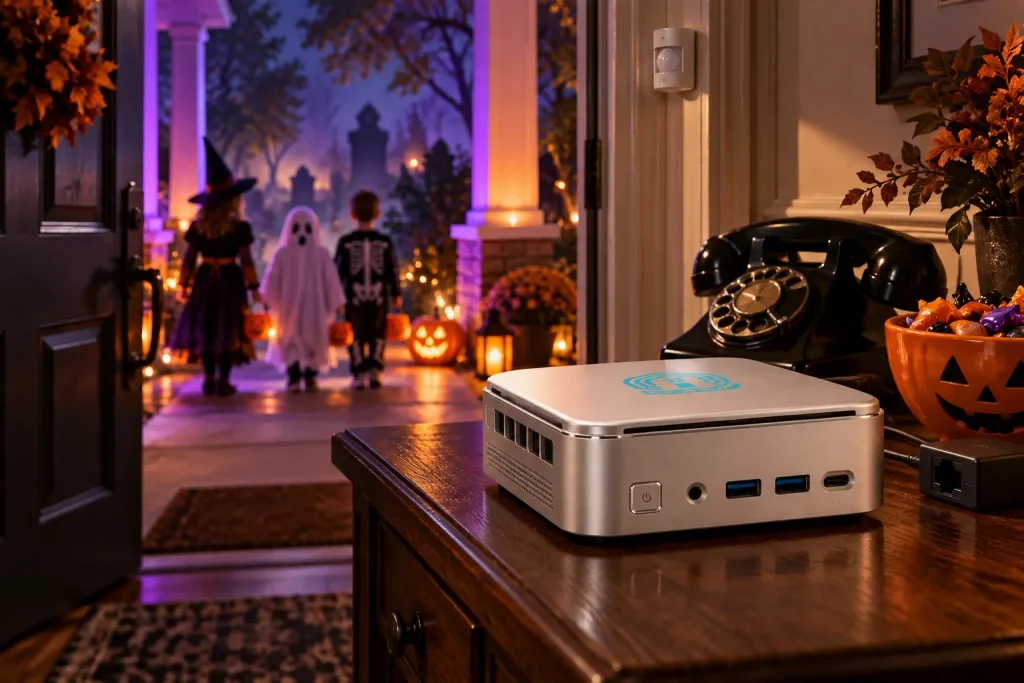
Five Home Assistant Halloween automations turn a smart home into a playful haunt.
The best Halloween decorations don’t wait for someone to press a button. They notice a guest, pause for just long enough to build suspense, and then do something delightfully unexpected. With Home Assistant Halloween automations, the motion sensors, lights, speakers, and doorbell you may already own can run the show – from a haunted hallway to an analog phone that rings on its own.
Here are five projects, from an easy afternoon setup to a wonderfully over-the-top haunted telephone. You don’t need a special Halloween plugin for most of them: Home Assistant’s built-in automations, scenes, scripts, media player actions, and Assist satellite announcements do the heavy lifting. The specific light, sensor, and speaker integrations depend on the devices in your home.
Explore five Home Assistant Halloween ideas
How to set up your Home Assistant Halloween display
Open Settings → Devices & services and confirm that your devices appear in Home Assistant. Then head to Settings → Automations & scenes to create the scenes and automations below. Give each effect an after-dark time condition, an easy way to turn it off, and a cooldown so one eager trick-or-treater doesn’t trigger the same scream six times. Test at a gentle volume before Halloween night.
Give your haunt a voice: Write a handful of short lines, then use a voice generation site such as ElevenLabs to make them sound like a nervous caretaker, a melodramatic vampire, or a cheerfully unhelpful ghost. Download each finished line as an MP3 or WAV file, add it to Home Assistant’s local media, and select that file in a Play specified media action. Pre-recording lets you test the timing and performance before guests arrive, and playback does not depend on a live voice generation request. ElevenLabs explains its audio download options.
Want a recognizable famous voice? ElevenLabs’ Iconic Marketplace lists voices associated with well-known performers and characters, but those require a licensing request and the rights holder’s approval for the intended use. For a quick project, choose a licensed character voice if available to you, or a distinctive voice from its regular library. Check the voice and audio usage terms before posting recordings in a public video or using them in business marketing.
A home base for the whole show: For a dedicated setup with these five effects, we would choose the Pulcro TurnKey Node Balanced configuration: an AMD R2514 processor, 16GB RAM, a 512GB SSD, and Home Assistant OS preinstalled. It gives you room to grow your integrations, automations, and local audio collection after Halloween. Connect the Node to your network by Ethernet, add your sensors and lights to Home Assistant, and let it coordinate the performance. The bulbs, speakers, sensors, and phone adapter are separate devices; generate the AI recordings on a voice website, then upload the finished audio to Home Assistant.
1. Motion-activated haunted hallway lights and whispers
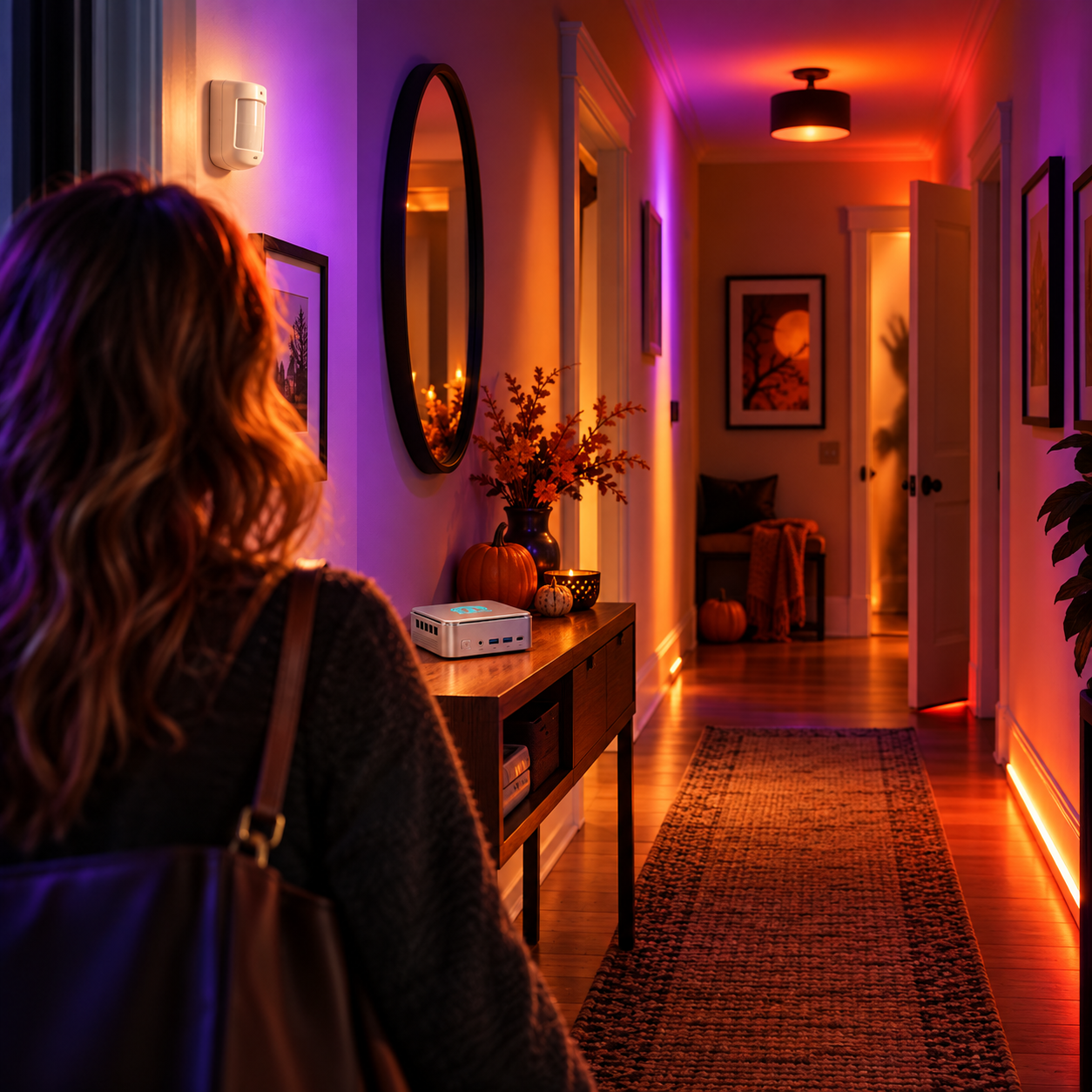
A motion sensor cues the haunted hallway lights and whispers.
A visitor steps inside. The hallway goes purple. A floor lamp turns red. Somewhere nearby, a floorboard creaks.
You’ll need: A motion sensor, two or more smart bulbs or light strips, and optionally a Home Assistant-compatible speaker.
Build it:
- Create a scene called Haunted Hallway with dim purple and red lighting. Create a second, ordinary scene to restore the hallway afterward.
- Make a new automation with the hallway motion sensor as the trigger. Add an evening time condition.
- Add actions in this order: activate the haunted scene, wait two seconds, play your pre-recorded creak or AI-voiced whisper on the speaker, wait 20 seconds, then restore the normal scene.
- Set the automation to avoid overlapping runs, or add a cooldown, and walk through the hallway a few times to tune the timing.
Extra mischief: Place the speaker around a corner. A quiet sound that seems to come from somewhere else beats a very loud sound every time. Home Assistant scenes can set several lights at once, while automations handle the timing.
Whispers to alternate:
- Barely audible: “There you are. We were wondering when you’d find the hallway.”
- A polite old caretaker: “Mind the third step. It remembers everybody.”
- An impish little ghost: “If the lights turn red, pretend you didn’t see me.”
- From around the corner: “Don’t worry. The footsteps stop when you stop.”
2. A talking Halloween candy bowl

The candy bowl has something to say when its lid opens.
The lid opens. A voice says, “One piece for you. The ghost is counting.”
You’ll need: A contact sensor on a lidded candy container and a nearby compatible speaker. A small button beside an open bowl also works if you’d rather let visitors choose when to trigger it.
Build it:
- Pair the contact sensor and check that opening the lid changes its state in Home Assistant.
- Generate a few short character lines with an AI voice site, download them, add them to Home Assistant’s local media, and test Play specified media on your chosen speaker.
- Create an automation triggered when the lid opens. Add an evening time condition and play one of your clips.
- Add a cooldown or an automation mode that prevents overlapping speeches. Rotate the line manually during the night, or use a script that chooses from several clips.
Keep the jokes short so the next guest doesn’t hear the end of the previous guest’s message. Try a tiny sound before the line: a candy wrapper crinkle, a cough from the bowl, then “The ghost is counting.” Home Assistant also supports live text-to-speech if you prefer it.
Candy bowl lines to alternate:
- A stern candy accountant: “One for you. One for the ghost. We will know if the numbers don’t add up.”
- A delighted little monster: “Excellent choice! I licked none of those. Probably.”
- An exhausted witch: “Please take a chocolate. I’ve been turning them into frogs all afternoon.”
- A very serious announcer: “Congratulations. You have been selected for a surprise cavity inspection. Just kidding. Happy Halloween!”
3. A Halloween doorbell scene for trick-or-treaters
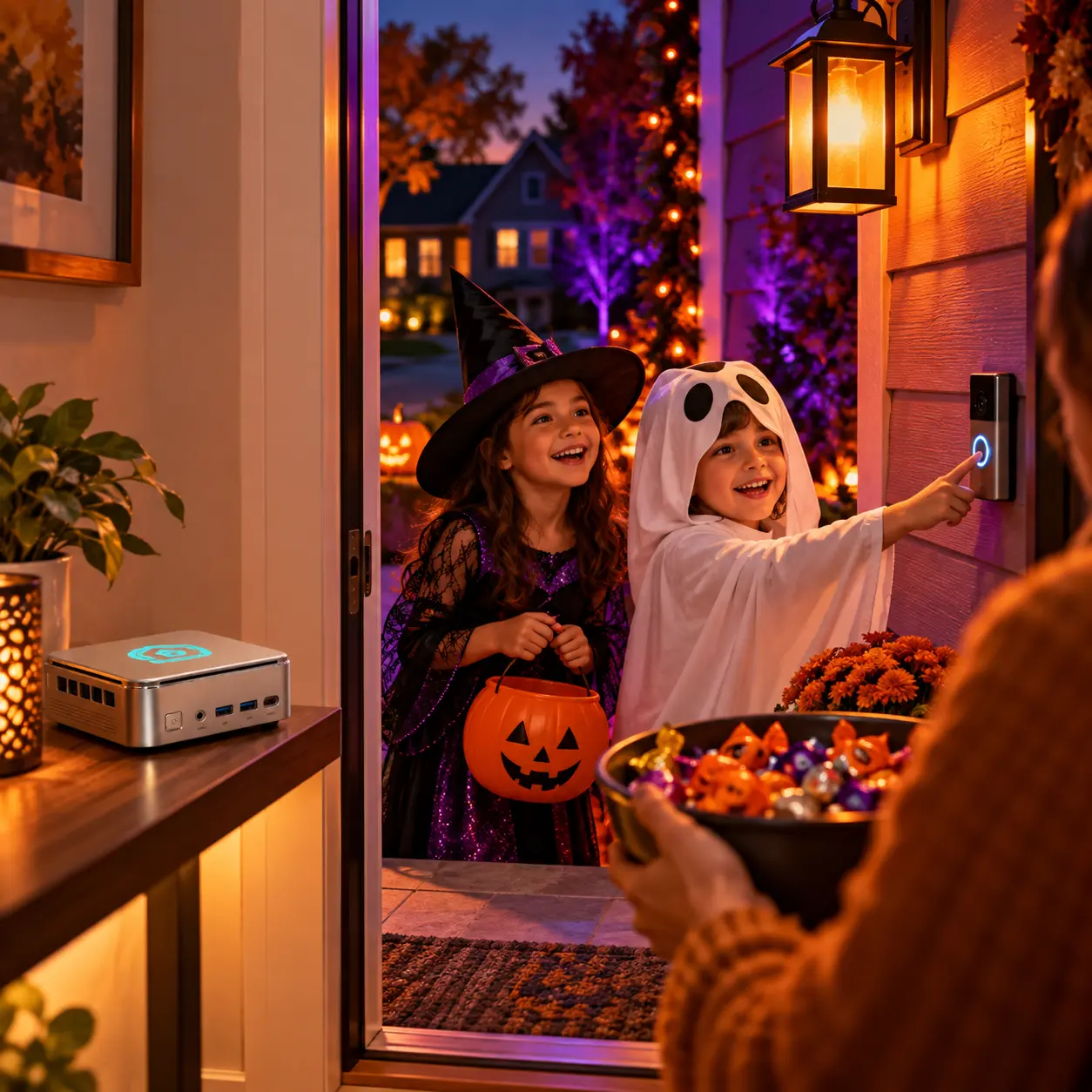
A doorbell press starts the Halloween welcome scene.
Ding-dong. The porch glows orange, the entry light fades to deep red, and a voice announces, “The next visitors have arrived.”
You’ll need: A doorbell that exposes a button-press event or entity in Home Assistant, smart porch or entry lights, and optionally a speaker.
Build it:
- Verify that pressing your doorbell produces an event or state change in Home Assistant. The exact trigger depends on the doorbell integration.
- Save a Visitors Have Arrived scene for your porch and entry lights.
- Trigger an automation from the doorbell press. Activate the scene, play a chime and your pre-recorded AI-voiced welcome, wait briefly, and restore your usual lighting.
- Set a cooldown to stop repeat presses from restarting the performance.
Make the effect welcoming enough for small children: a silly “The candy council has been summoned!” can be as memorable as a sinister whisper. Keep the porch and steps bright enough for guests to see where they’re walking.
Doorbell greetings to alternate:
- A grand butler: “The living have arrived. Shall I put out the good candy?”
- A sleepy ghost: “Who rings at this hour? Oh, trick-or-treaters. Finally, company.”
- A theatrical villain: “You found the door. Your next challenge: choose wisely from the candy bowl.”
- A cheerful house voice: “Welcome! Costumes detected. Treat protocol activated.”
4. An outdoor graveyard with motion-triggered sounds

The graveyard wakes up when guests approach.
The yard looks still. Then the tombstones glow, a low wind rises, and a shadow seems to move behind the fence.
You’ll need: Outdoor-rated smart lights or a suitable smart plug with outdoor-rated decorations, an outdoor motion sensor, and optionally a sheltered, compatible speaker.
Build it:
- Make a Graveyard Awake scene with low, steady lighting. Put your sound effects and any AI-voiced cemetery caretaker lines in a separate script so you can test them independently.
- Use sunset or a set evening time to activate the scene. Use a later time to turn it off.
- Make a second automation that plays a short wind, owl, or footsteps clip when the outdoor motion sensor detects a visitor.
- Limit how often the audio runs and aim the sensor at your own walkway, away from passing cars and neighbors.
This is a good place for restraint. A soft sound and a slow lighting change make the yard feel alive without turning every passing pedestrian into an all-night jump scare. Keep cables, fixtures, and speakers suited to their location.
Graveyard voices to alternate:
- A grumbling groundskeeper: “I just raked those leaves. Who keeps walking through my cemetery?”
- A ghost calling from far away: “Is the party over there? I always lose track of the living.”
- A skeleton with impeccable manners: “Please stay on the path. The residents are trying to rest.”
- A dramatic whisper after a gust of wind: “The gate was closed a moment ago.”
5. An analog phone that rings when motion is detected
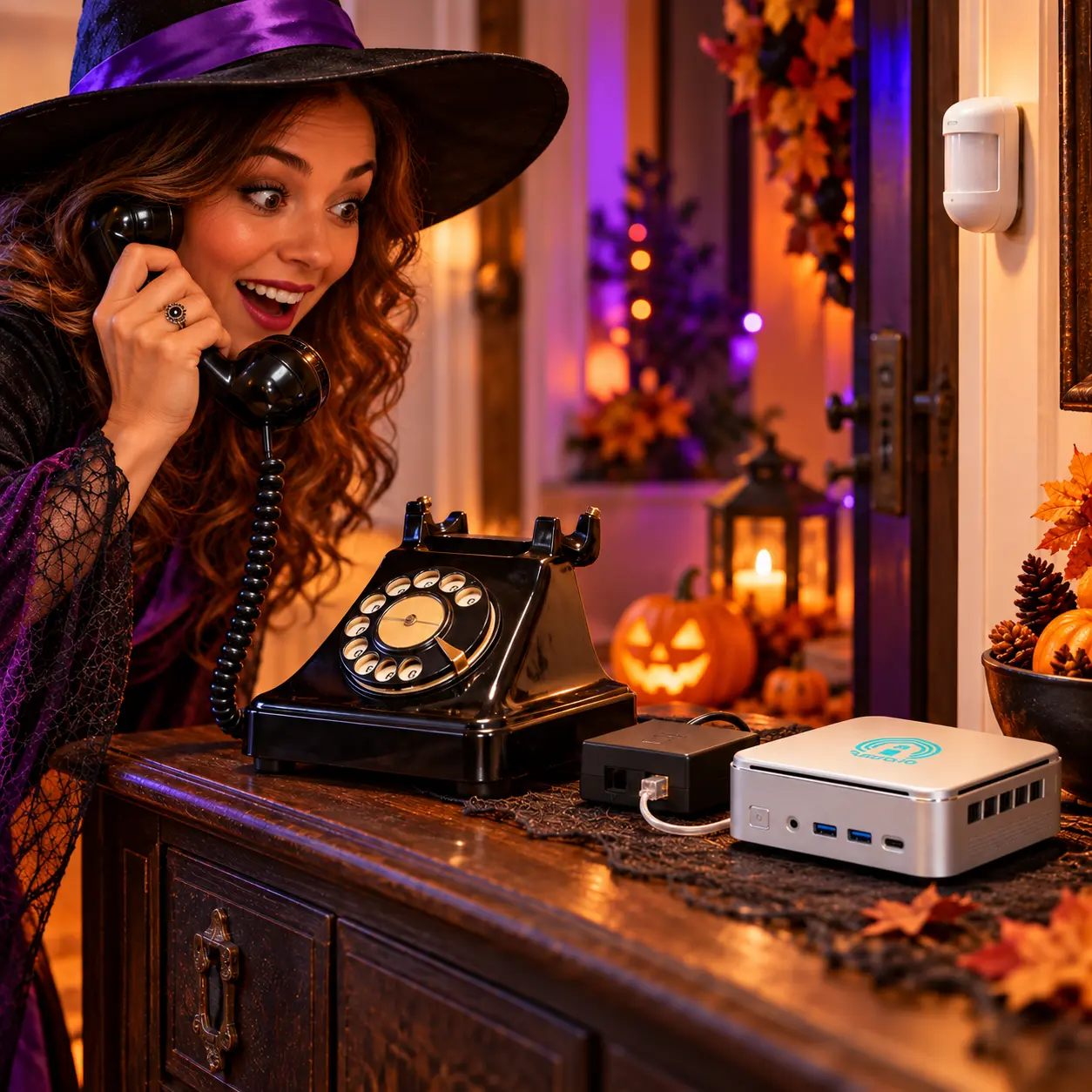
The mystery phone rings, then delivers its message when answered.
Someone approaches the old telephone on the table. It rings. They pick it up. A raspy voice whispers, “We’ve been trying to reach you about your haunted house’s extended warranty.”
You’ll need: An analog telephone, a compatible analog telephone adapter (ATA) such as a Grandstream HT801, a motion sensor, Home Assistant’s Voice over IP integration, and a prerecorded message. Check compatibility if you use another adapter.
How the pieces fit: The phone plugs into the ATA, and the ATA connects to Home Assistant’s Voice over IP integration. It appears as an Assist satellite. Motion starts an automation that calls Assist satellite: Announce. Home Assistant places the SIP call directly to the adapter, the analog phone rings, and the announcement plays when someone picks up. There is no separate PBX or telephone service to configure for this effect.
Build it:
- Follow Home Assistant’s analog phone setup guide to connect a compatible Grandstream ATA and add Voice over IP under Settings → Devices & services. Confirm the phone works with Assist and that its
assist_satelliteentity appears. - Generate a short, spooky or silly AI voiceover, download it as an MP3 or WAV file, and add it to Home Assistant’s local media. For a first test, you can use a plain text message instead.
- Under Settings → Automations & scenes, make a motion-triggered automation with an evening condition. Add Assist satellite: Announce, target the phone’s Assist satellite, and choose your recording as the Media ID. Set Preannounce to off unless you want Home Assistant’s default chime before the message.
- Test the announcement action manually: the phone should ring, and the voiceover should play after you answer. Then test the motion trigger, add a generous cooldown, and avoid calling while the phone is in use.
- Try an unanswered call and a quick hang-up before inviting your first victim—sorry, guest. If nobody answers, the announcement action may time out; account for that if later actions depend on it.
The Voice over IP integration supports the analog-phone setup, and the Assist satellite announcement action accepts either spoken text or a prerecorded media ID. This is a local SIP interaction with the ATA, not a call to a real telephone number. Adapter behavior can vary, so test your exact model and Home Assistant version ahead of the party.
Calls to alternate: A couple of rings build suspense if the guest waits before answering. Start each recording with a half-second pause so the first word isn’t clipped.
- Crackly vintage operator: “Please hold for the house. It has been waiting to speak with you since 1926.”
- Suspiciously upbeat salesperson: “Hello! We’ve been trying to reach you about your haunted house’s extended warranty. Does it cover unexplained footsteps?”
- Very serious dispatcher: “This is the Candy Emergency Line. We have reports of an empty bowl. Proceed with chocolate immediately.”
- Soft whisper, then a little creak: “I’m calling from the room you’re about to enter. Would you mind turning on the light?”
Let the TurnKey Node run your Halloween show
Skip the operating system setup and get to the fun part. The Pulcro TurnKey Node Balanced configuration comes with Home Assistant OS preinstalled, giving your Halloween lights, sensors, speakers, and mystery phone one dedicated place to work together. Start with these five scenes, then keep using the same mini PC for home automation all year.
Smart lights, sensors, speakers, and the phone adapter are added separately.