
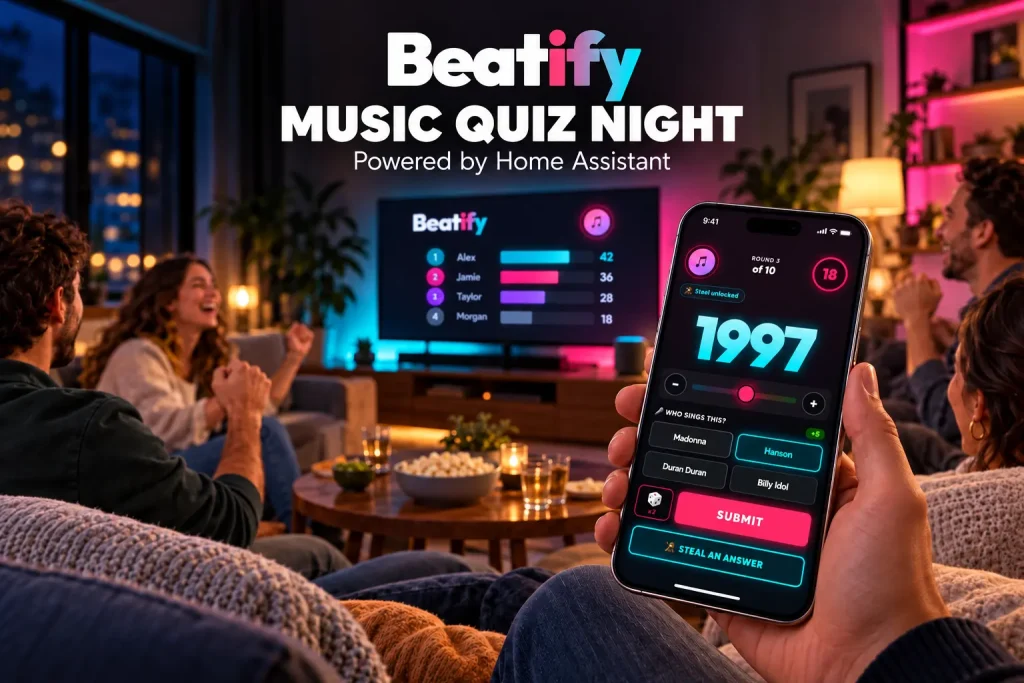
Your smart home already handles the lights. Here’s something it can do when friends come over: put your music knowledge to the test.
Picture a few friends around the living room. A familiar song comes through the speakers, and someone announces that they definitely remember it from high school. However, someone else insists it came out ten years earlier. Now everyone has to put a year on it.
That’s the appeal of Beatify, a free, open-source music party game for Home Assistant. Guests join on their phones, music plays through supported speakers, and the scoreboard can go on the TV. As a result, your existing smart home becomes the setting for game night.
Already running Home Assistant on a Pulcro TurnKey Node mini PC? Beatify gives that same smart home hub another role: hosting music trivia for your next game night.
A Home Assistant project your guests can join in with
If you run Home Assistant, you probably have a few automations you’re pleased with. Showing visitors a dashboard, though, isn’t quite the same as giving them something to do.
By comparison, a music quiz gives visitors something they can take part in. Nobody needs to understand your automations or know what a Home Assistant integration is. Instead, they need a phone, a song they recognize, and an opinion about when it was released.
Beatify’s core game asks players to guess the release year. Guests scan a QR code to enter, without installing an app or creating an account. Because joining takes no app installation, the evening can stay focused on the people in the room.
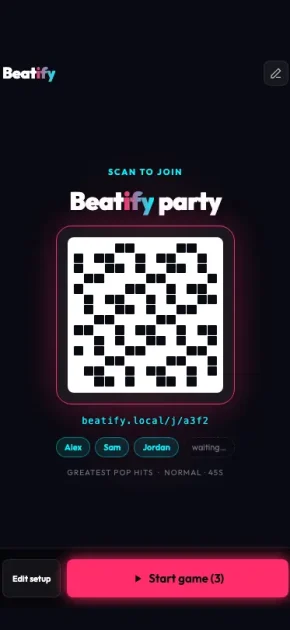
Guests scan the game’s QR code to join. Screenshot supplied by Beatify.
Recognizing the song is only half the challenge
For example, you might know every word and still be a decade out. That gap between “I know this” and “I know when this happened” is what makes the idea inviting.
The supplied screens show a year slider, artist choices, answer reveals, and a final podium. In addition, they show how the game builds around a simple question: choose your answer before the reveal settles it.
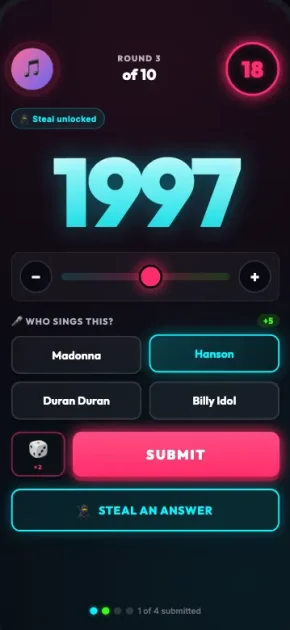
Pick a year, commit to the answer, and see who knows their music. Screenshot supplied by Beatify.
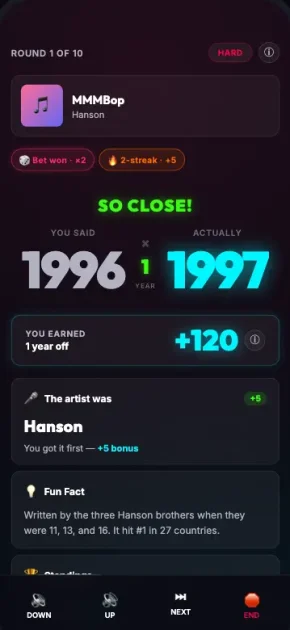
The reveal is where confident guesses meet the actual release year. Screenshot supplied by Beatify.
Try this before your first game: ask everyone to name a song they associate with their first car, a school dance, or a summer job. Then guess its year before looking it up. If that starts a debate, you already have a good reason to try a music-quiz evening.
For a first session, we’d keep the choices familiar. Pick a playlist that gives everyone something to recognize, play a short game, and let the group decide where to go next. After that, save the obscure tracks for the friend who claims they know everything.
What you need before installing Beatify
- A Home Assistant system: Home Assistant 2025.1 or newer, with HACS installed. Already running it? Use your existing setup. If you need a dedicated host, the Pulcro TurnKey Node mini PC with Home Assistant pre-installed lets you start with the operating system ready to configure. Select Home Assistant when ordering, then set up HACS and install Beatify separately.
- A supported speaker path: Sonos, Alexa Media Player, or Music Assistant.
- A compatible music source: a paid on-demand streaming plan, or your own library through Music Assistant.
- Phones that can reach your Home Assistant URL. However, isolated guest Wi-Fi can block access.
For direct Sonos playback, Beatify supports Spotify. Alexa and Music Assistant have different service options; Chromecast, Nest and HomePod need Music Assistant. Therefore, check the speaker compatibility table before setting up your game.
Although Beatify is free, music subscriptions are separate. The included playlists identify songs rather than giving you ownership of the recordings.
How to install Beatify in Home Assistant
This concise walkthrough assumes your speakers, music source and HACS are already configured.
- First, install: search HACS for Beatify, download it, then restart Home Assistant.
- Next, add the integration: open Settings → Devices & Services → Add Integration and select Beatify.
- Finally, host: open Beatify from the sidebar. Follow the wizard, show the QR code, and start once players appear.
Follow the developer’s setup guide for current details.
Put the scoreboard on the TV
A shared screen gives everyone somewhere to look when the answers come in. While phones handle the guesses, the television makes the result a moment for the room.
Open http://YOUR-HA-IP:8123/beatify/static/dashboard.html in a suitable browser or cast that browser tab to the TV. Replace YOUR-HA-IP with your server’s address. Although this dashboard displays the game, audio still uses the selected speaker.
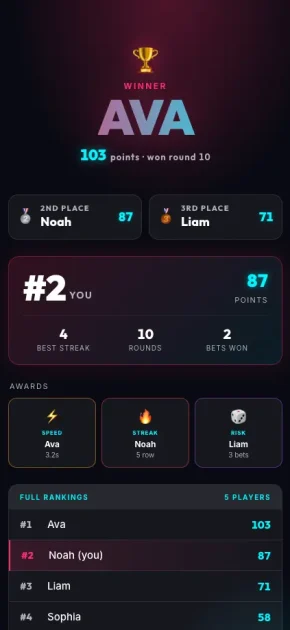
The final scoreboard gives the evening a winner—and a reason for a rematch. Screenshot supplied by Beatify.
From smart home hub to game-night host: the Pulcro TurnKey Node
Your Home Assistant mini PC can do more than manage lights, sensors, and schedules. With Beatify installed, that same system can host a music quiz for the people sitting in your living room.
The Pulcro TurnKey Node with Home Assistant pre-installed provides the foundation: a dedicated mini PC running your smart home, with community integrations such as Beatify added as you discover new uses for it.
Each part of the setup has a straightforward role. The Node runs Home Assistant and hosts Beatify. Meanwhile, your compatible speakers play the music. Guests scan the game’s QR code and submit guesses on their phones, while an optional TV dashboard brings the scores into view. As a result, the mini PC can stay wherever you normally keep your smart home hub.
Already own a TurnKey Node running Home Assistant? Start with your existing system and follow the Beatify installation steps above. In other words, there’s no separate game console to add.
Getting started with Home Assistant? Choose the Home Assistant operating-system option when ordering your TurnKey Node, so you can begin with the OS already installed. After completing Home Assistant onboarding, you’ll configure your supported speakers and music service, set up HACS, and install Beatify separately.
It’s another reason to think of a Home Assistant mini PC as something you can keep finding uses for—from everyday automations to a Friday night spent discovering who actually knows their ’90s music.
Give your next game night a soundtrack
Home automation is often about making things happen quietly in the background. In contrast, Beatify offers a reason to bring that setup into the evening: something friends can share, argue over, and ask to play again.
If you already have Home Assistant and compatible speakers, take a look at the Beatify website and open-source project. Before guests arrive, check that one phone can join and one song can play. Then keep the first round simple.
What would your group choose first: ’80s hits, ’90s nostalgia, or a mix of everything? Tell us in the comments—and let us know how your Beatify night goes.
Beatify logo and game screenshots supplied for this community feature. Screenshots show example interfaces; appearance and scoring may vary by version.
Community feature:This is an unpaid feature with no commercial arrangement or affiliate compensation. Pulcro.io’s setup overview is based on the developer’s documentation and supplied media.