LOADING...

Reimage, Repair & Diagnose TurnKey Mini PCs

Pulcro.io Plan B Recovery USB

Recover, reimage, and diagnose your supported Pulcro.io TurnKey Mini PC with the Pulcro.io Plan B Recovery USB.

Plan B is a bootable recovery environment designed to help restore factory software, run hardware diagnostics, and provide access to remote support tools when needed.

Whether you are reinstalling Home Assistant, troubleshooting a system issue, or preparing a Mini PC for redeployment, Plan B provides a simple and reliable way to get your device back to a known working state.

During recovery, the tool connects securely to Pulcro.io servers to authenticate the device and restore the factory software originally provided for that Mini PC.


⚠️ Important Requirements Before You Begin

ALL DATA ON THE TARGET DRIVE WILL BE PERMANENTLY ERASED DURING REIMAGING.

  • This tool will only function on registered Pulcro.io devices
  • Requires a wired Ethernet connection (DHCP)
  • Requires an active Internet connection (data rates may apply)
  • Requires a monitor and keyboard
  • Supported on Pulcro.io TurnKey Mini PCs only
  • No Operating System (No OS) systems must be registered with Pulcro.io before use
  • Diagnostic reports can be emailed to you and will be shared with Pulcro.io Engineering in accordance with our Diagnostics Telemetry Disclosure.

Please Note: Pulcro.io is transitioning away from onboard recovery partitions in favor of this unified recovery USB solution.

By using the Pulcro.io Plan B Recovery USB and associated software, you acknowledge and agree to the Pulcro.io End User License Agreement (EULA) and understand that data on the target device may be permanently erased during recovery operations.


Supported Use Cases

  • Reimage your Mini PC with factory software
  • Restore Home Assistant or other supported operating systems
  • Run hardware diagnostics and health checks and seamlessly share them with Pulcro.io Support
  • Test system memory for faults
  • Connect to Pulcro.io remote support sessions
Select Your Mini PC Model

TurnKey One

Use these instructions to boot into your Pulcro.io Plan B Recovery USB for your Pulcro.io TurnKey One Mini PC.

Step 1 – Connect Ethernet, Monitor and Keyboard

Connect the Mini PC to a wired network with DHCP and Internet access. Ensure you have a monitor and keyboard plugged in as well.

Step 2 – Insert the USB Drive

Insert the prepared Pulcro.io Plan B Recovery USB into an available USB port on the Mini PC.

Step 3 – Boot from the USB Drive

  1. Power on the Mini PC
  2. Press F7 at the boot screen to open the boot menu
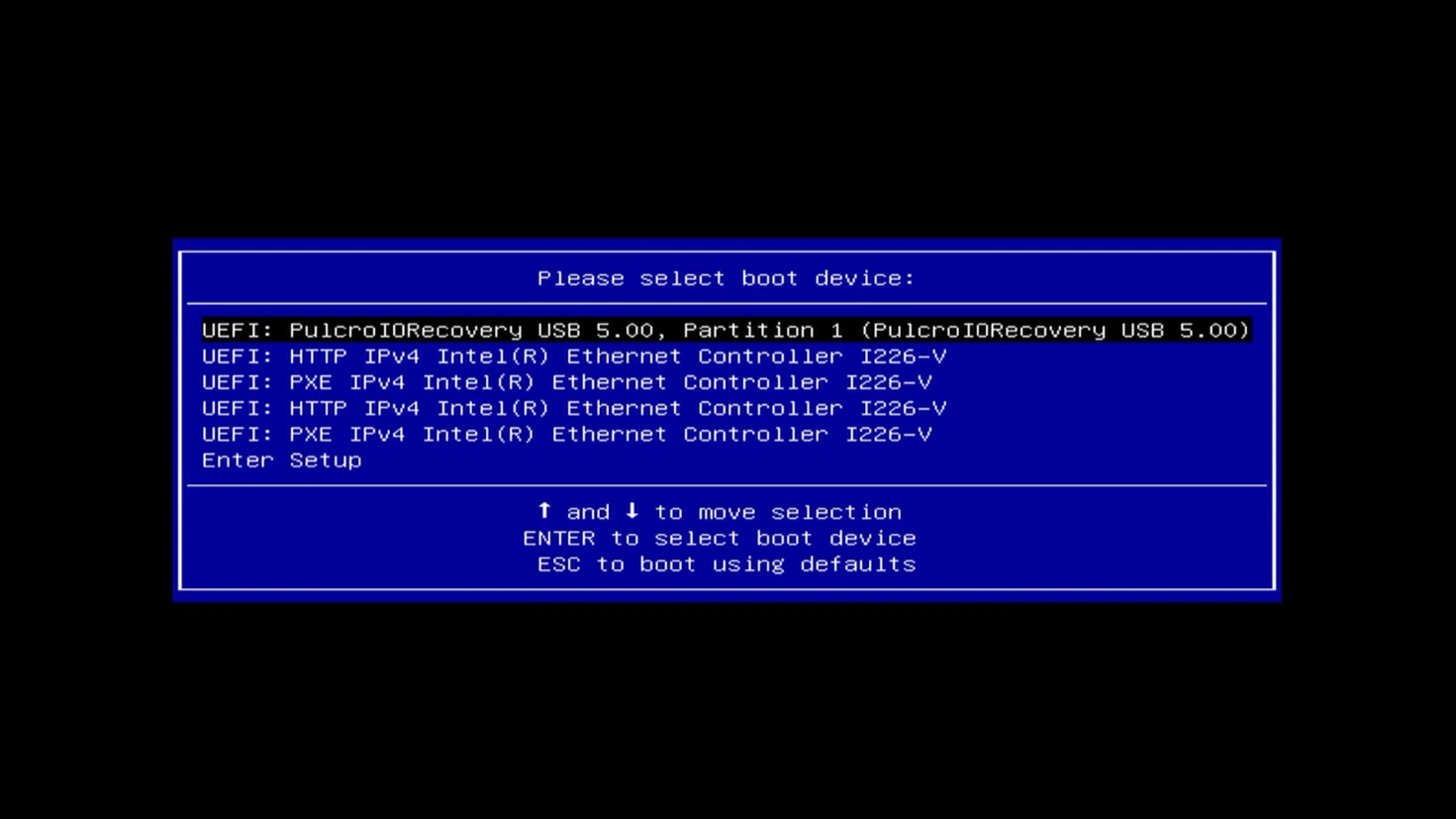
  3. Select PulcroIORecovery USB
  4. Press Enter

Step 4 – Select a Plan B Tool

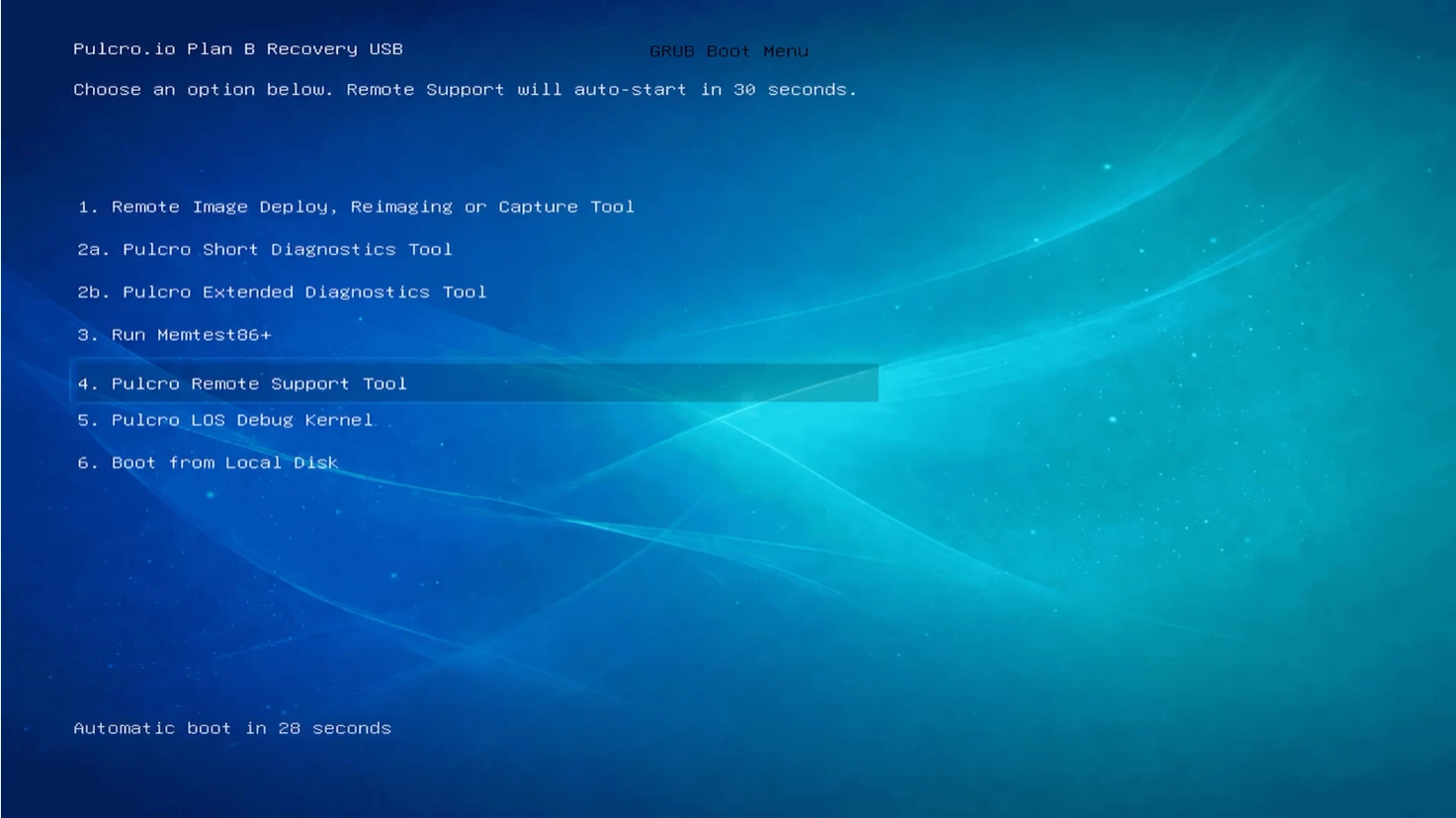
The menu options will appear as shown below:

  • 1. Remote Image Deploy, Reimaging or Capture Tool
    To reimage your Mini PC, select this option.
  • 2a. Pulcro Short Diagnostics Tool
    To run a short diagnostic report that can be emailed to you and shared with Pulcro.io Engineering, select this option.
  • 2b. Pulcro Extended Diagnostics Tool
    To run a long diagnostic report that can be emailed to you and shared with Pulcro.io Engineering, select this option.
  • 3. Run Memtest86+
    To test your memory for faults, select this option.
  • 4. Pulcro Remote Support Tool
    If you have a scheduled remote support session, select this option.

To schedule a remote support session, email hello@pulcro.io. Professional IT service rates may apply.

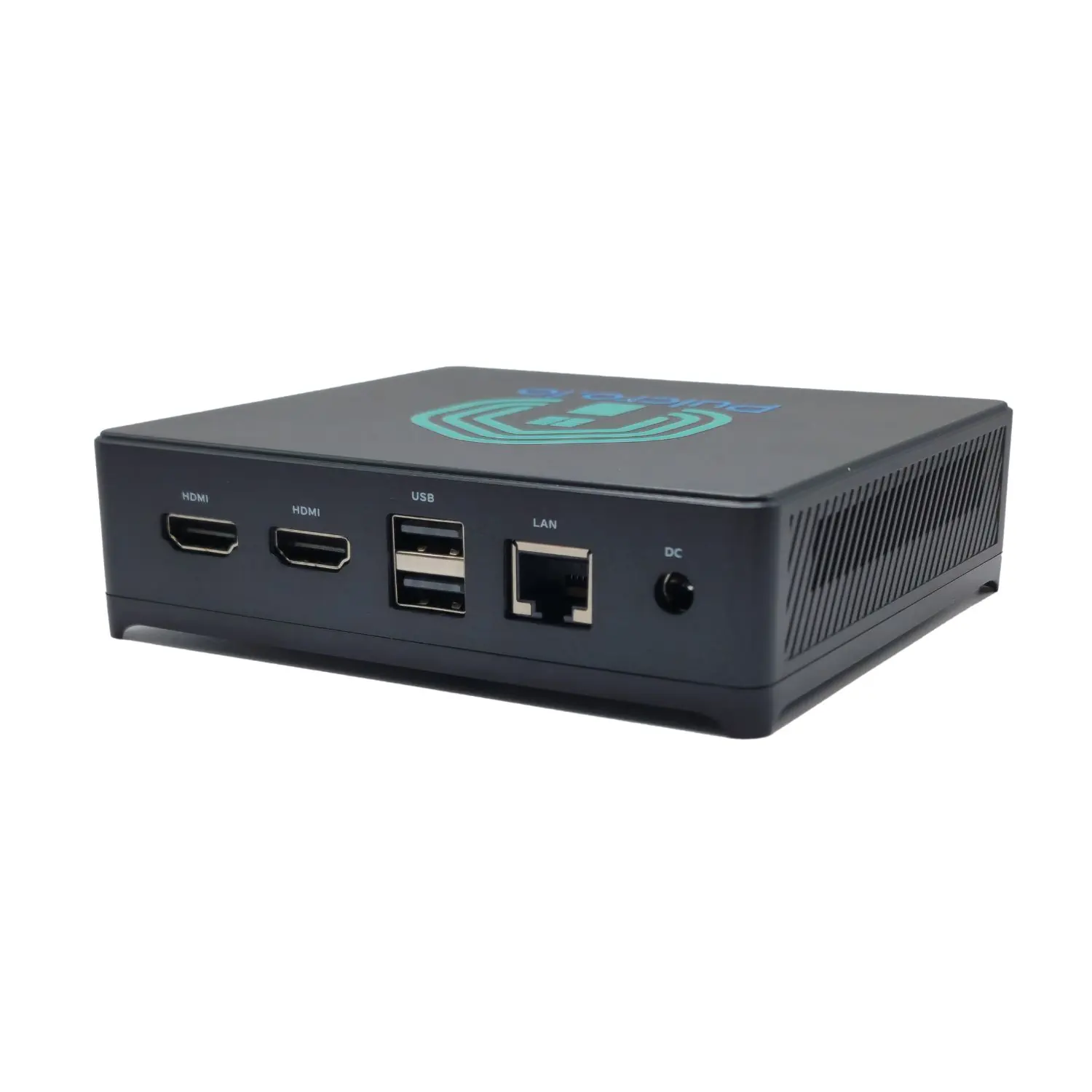
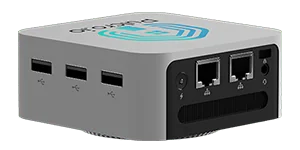
Angled rear view of the Pulcro.io TurnKey Mini PC highlighting HDMI, USB, LAN, and power ports.
Discover the rear connectivity of the Pulcro.io TurnKey Mini PC, featuring dual HDMI ports, USB ports, LAN port, and DC power input for versatile and efficient setups.
Boot menu screen showing UEFI options with "PulcroIORecovery USB 5.00" highlighted - select this option to start the Pulcro Plan B Recovery USB
Select “UEFI: PulcroIORecovery USB 5.00” to boot into the Pulcro Plan B Recovery environment.
Pulcro Plan B Recovery USB GRUB boot menu showing options including Remote Image Deploy, Diagnostics tools, Memtest86+, and Remote Support Tool
Select the desired option - choose “1. Remote Image Deploy, Reimaging or Capture Tool” to reimage your system or select a diagnostics or support option as needed.

TurnKey Two

Use these instructions to boot into your Pulcro.io Plan B Recovery USB for your Pulcro.io TurnKey Two Mini PC.

Step 1 – Connect Ethernet, Monitor and Keyboard

Ethernet Port: Connect your Ethernet cable to the port closest to the power inlet (i.e. left-most port when looking from the back). If the wrong port is used, the TurnKey Two will not be able to communicate with Pulcro.io and recovery will fail.

Connect the Mini PC to a wired network with DHCP and Internet access.

Ensure you have a monitor and keyboard plugged in as well.

Step 2 – Insert the USB Drive

Insert the prepared Pulcro.io Plan B Recovery USB into an available USB port on the Mini PC.

Step 3 – Boot from the USB Drive

  1. Power on the Mini PC
  2. Press F7 at the boot screen to open the boot menu
  3. Select PulcroIORecovery USB
  4. Press Enter

Step 4 – Select a Plan B Tool

The menu options will appear as shown below:

  • 1. Remote Image Deploy, Reimaging or Capture Tool
    To reimage your Mini PC, select this option.
  • 2a. Pulcro Short Diagnostics Tool
    To run a short diagnostic report that can be emailed to you and shared with Pulcro.io Engineering, select this option.
  • 2b. Pulcro Extended Diagnostics Tool
    To run a long diagnostic report that can be emailed to you and shared with Pulcro.io Engineering, select this option.
  • 3. Run Memtest86+
    To test your memory for faults, select this option.
  • 4. Pulcro Remote Support Tool
    If you have a scheduled remote support session, select this option.

To schedule a remote support session, email hello@pulcro.io. Professional IT service rates may apply.

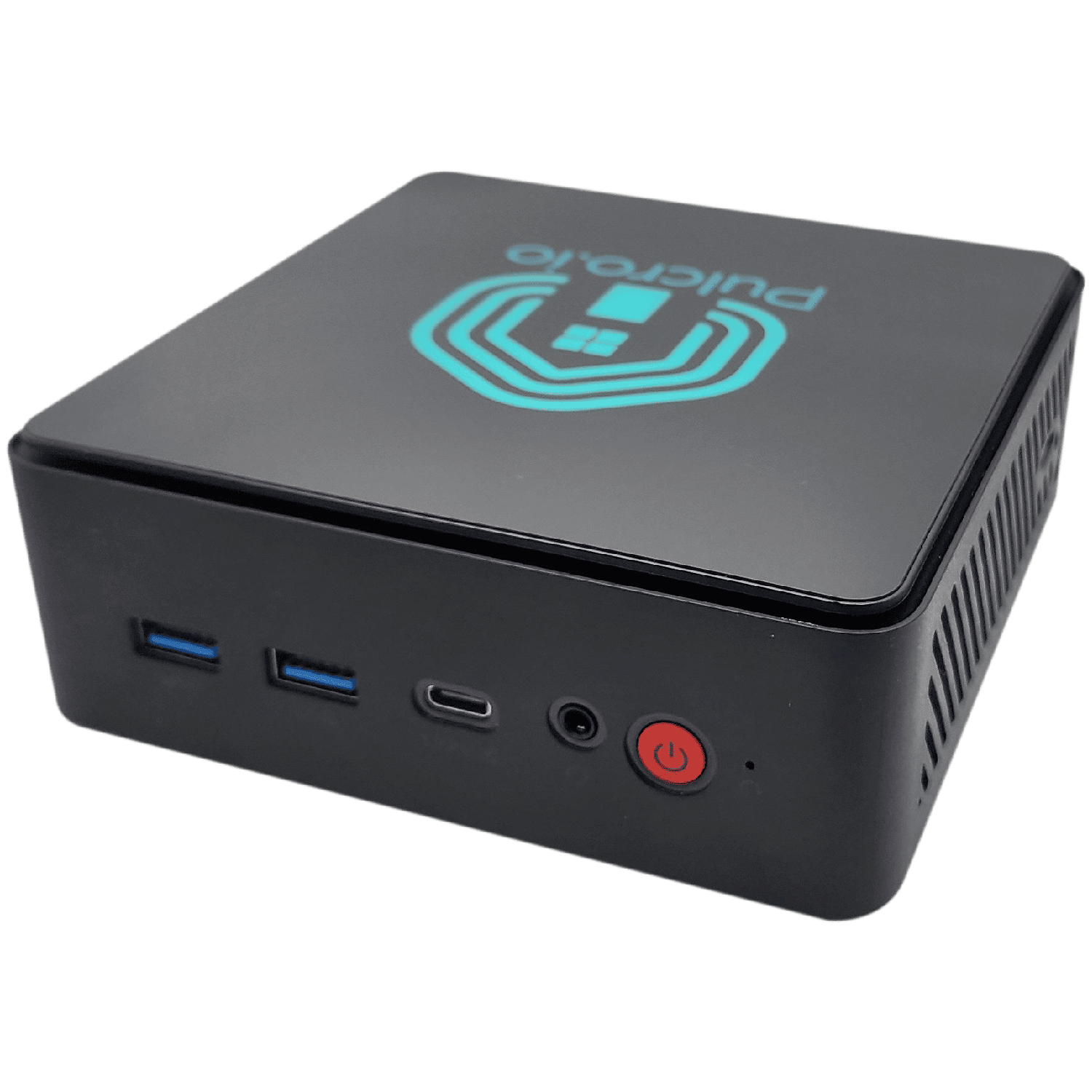
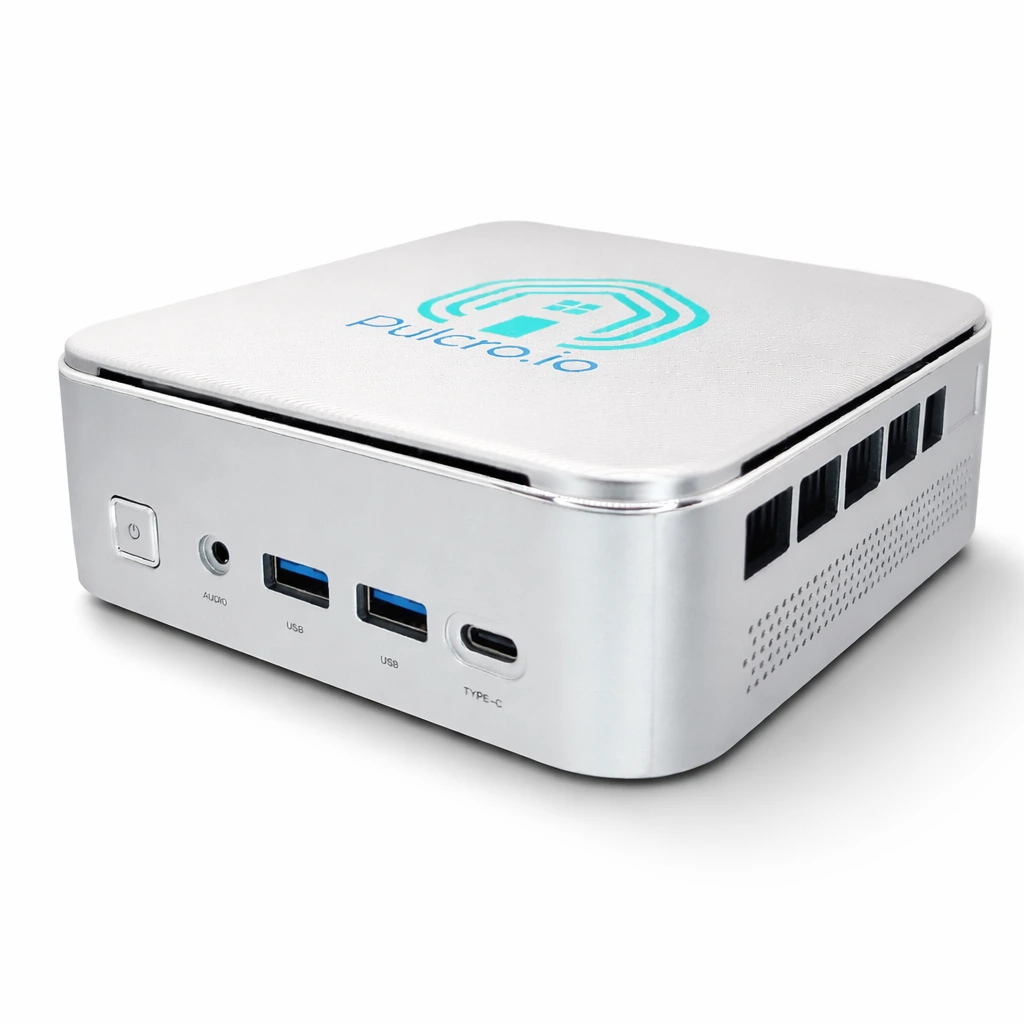
Front-angle view of the Pulcro TurnKey Two Mini PC showing USB ports, power button, and Pulcro.io branding on the top panel.
Pulcro TurnKey Two Mini PC featuring dual 2.5GbE ports, USB-C, and a sleek, modern design optimized for Proxmox and virtualization.
Boot menu screen showing UEFI options with "PulcroIORecovery USB 5.00" highlighted - select this option to start the Pulcro Plan B Recovery USB
Select “UEFI: PulcroIORecovery USB 5.00” to boot into the Pulcro Plan B Recovery environment.
Pulcro Plan B Recovery USB GRUB boot menu showing options including Remote Image Deploy, Diagnostics tools, Memtest86+, and Remote Support Tool
Select the desired option - choose “1. Remote Image Deploy, Reimaging or Capture Tool” to reimage your system or select a diagnostics or support option as needed.

TurnKey QBE

Use these instructions to boot into your Pulcro.io Plan B Recovery USB for your Pulcro.io TurnKey QBE Mini PC.

Step 1 – Connect Ethernet, Monitor and Keyboard

Ethernet Port: Connect your Ethernet cable to the port furthest away from the power inlet (i.e. right-most port when looking from the back). If the wrong port is used, the TurnKey QBE will not be able to communicate with Pulcro.io and recovery will fail.

Connect the Mini PC to a wired network with DHCP and Internet access. Ensure you have a monitor and keyboard plugged in as well.

Step 2 – Insert the USB Drive

Insert the prepared Pulcro.io Plan B Recovery USB into an available USB port on the Mini PC.

Step 3 – Boot from the USB Drive

  1. Power on the Mini PC
  2. Press F7 at the boot screen to open the boot menu
  3. Select PulcroIORecovery USB
  4. Press Enter

Step 4 – Select a Plan B Tool

The menu options will appear as shown below:

  • 1. Remote Image Deploy, Reimaging or Capture Tool
    To reimage your Mini PC, select this option.
  • 2a. Pulcro Short Diagnostics Tool
    To run a short diagnostic report that can be emailed to you and shared with Pulcro.io Engineering, select this option.
  • 2b. Pulcro Extended Diagnostics Tool
    To run a long diagnostic report that can be emailed to you and shared with Pulcro.io Engineering, select this option.
  • 3. Run Memtest86+
    To test your memory for faults, select this option.
  • 4. Pulcro Remote Support Tool
    If you have a scheduled remote support session, select this option.

To schedule a remote support session, email hello@pulcro.io. Professional IT service rates may apply.

Rear view of Pulcro TurnKey QBE Mini PC featuring dual LAN ports, three USB ports, and triple HDMI
Pulcro TurnKey QBE Mini PC showcasing rear connectivity options, including dual LAN, triple USB, and HDMI ports.
Boot menu screen showing UEFI options with "PulcroIORecovery USB 5.00" highlighted - select this option to start the Pulcro Plan B Recovery USB
Select “UEFI: PulcroIORecovery USB 5.00” to boot into the Pulcro Plan B Recovery environment.
Pulcro Plan B Recovery USB GRUB boot menu showing options including Remote Image Deploy, Diagnostics tools, Memtest86+, and Remote Support Tool
Select the desired option - choose “1. Remote Image Deploy, Reimaging or Capture Tool” to reimage your system or select a diagnostics or support option as needed.

TurnKey Node

Use these instructions to boot into your Pulcro.io Plan B Recovery USB for your Pulcro.io TurnKey Node Mini PC.

Step 1 – Connect Ethernet, Monitor and Keyboard

Connect the Mini PC to a wired network with DHCP and Internet access. Ensure you have a monitor and keyboard plugged in as well.

Step 2 – Insert the USB Drive

Insert the prepared Pulcro.io Plan B Recovery USB into an available USB port on the Mini PC.

Step 3 – Boot from the USB Drive

  1. Power on the Mini PC
  2. Press F7 at the boot screen to open the boot menu
  3. Select PulcroIORecovery USB
  4. Press Enter

Step 4 – Select a Plan B Tool

The menu options will appear as shown below:

  • 1. Remote Image Deploy, Reimaging or Capture Tool
    To reimage your Mini PC, select this option.
  • 2a. Pulcro Short Diagnostics Tool
    To run a short diagnostic report that can be emailed to you and shared with Pulcro.io Engineering, select this option.
  • 2b. Pulcro Extended Diagnostics Tool
    To run a long diagnostic report that can be emailed to you and shared with Pulcro.io Engineering, select this option.
  • 3. Run Memtest86+
    To test your memory for faults, select this option.
  • 4. Pulcro Remote Support Tool
    If you have a scheduled remote support session, select this option.

To schedule a remote support session, email hello@pulcro.io. Professional IT service rates may apply.

Pulcro.io TurnKey Node Mini PC compact aluminum computer with USB-C, USB ports and quiet cooling design
The Pulcro.io TurnKey Node Mini PC.
Boot menu screen showing UEFI options with "PulcroIORecovery USB 5.00" highlighted - select this option to start the Pulcro Plan B Recovery USB
Select “UEFI: PulcroIORecovery USB 5.00” to boot into the Pulcro Plan B Recovery environment.
Pulcro Plan B Recovery USB GRUB boot menu showing options including Remote Image Deploy, Diagnostics tools, Memtest86+, and Remote Support Tool
Select the desired option - choose “1. Remote Image Deploy, Reimaging or Capture Tool” to reimage your system or select a diagnostics or support option as needed.

TurnKey Project (Custom) X

Use these instructions to boot into your Pulcro.io Plan B Recovery USB for your Pulcro.io TurnKey Project X (Custom) Mini PC.

Step 1 – Connect Ethernet, Monitor and Keyboard

Ethernet Port: Connect your Ethernet cable to the port furthest away from the power inlet (i.e. left-most port when looking from the back). If the wrong port is used, the TurnKey X will not be able to communicate with Pulcro.io and recovery will fail.

Connect the Mini PC to a wired network with DHCP and Internet access.

Ensure you have a monitor and keyboard plugged in as well.

Step 2 – Insert the USB Drive

Insert the prepared Pulcro.io Plan B Recovery USB into an available USB port on the Mini PC.

Step 3 – Boot from the USB Drive

  1. Power on the Mini PC
  2. Press F7 at the boot screen to open the boot menu
  3. Select PulcroIORecovery USB
  4. Press Enter

Step 4 – Select a Plan B Tool

The menu options will appear as shown below:

  • 1. Remote Image Deploy, Reimaging or Capture Tool
    To reimage your Mini PC, select this option.
  • 2a. Pulcro Short Diagnostics Tool
    To run a short diagnostic report that can be emailed to you and shared with Pulcro.io Engineering, select this option.
  • 2b. Pulcro Extended Diagnostics Tool
    To run a long diagnostic report that can be emailed to you and shared with Pulcro.io Engineering, select this option.
  • 3. Run Memtest86+
    To test your memory for faults, select this option.
  • 4. Pulcro Remote Support Tool
    If you have a scheduled remote support session, select this option.

To schedule a remote support session, email hello@pulcro.io. Professional IT service rates may apply.

Front-angle view of the Pulcro TurnKey Two Mini PC showing USB ports, power button, and Pulcro.io branding on the top panel.
Pulcro TurnKey Two Mini PC featuring dual 2.5GbE ports, USB-C, and a sleek, modern design optimized for Proxmox and virtualization.
Boot menu screen showing UEFI options with "PulcroIORecovery USB 5.00" highlighted - select this option to start the Pulcro Plan B Recovery USB
Select “UEFI: PulcroIORecovery USB 5.00” to boot into the Pulcro Plan B Recovery environment.
Pulcro Plan B Recovery USB GRUB boot menu showing options including Remote Image Deploy, Diagnostics tools, Memtest86+, and Remote Support Tool
Select the desired option - choose “1. Remote Image Deploy, Reimaging or Capture Tool” to reimage your system or select a diagnostics or support option as needed.

Didn’t find what you were looking for?

🚚 FREE U.S. Shipping (inc. HI & AK) for orders $100+ ➡ Shop Now!