
LOADING...

Recovery

Effortless Recovery with Pulcro.io

At Pulcro, we believe that technology should make life easier, not more complicated. That’s why we’ve designed our products to be user-friendly and hassle-free, right from the start. But we know that sometimes things don’t go as planned, and when they don’t, getting back on track should be simple and straightforward.

Our built-in recovery system is here to help. Whether you’re troubleshooting an issue or starting fresh, the recovery feature on your Pulcro.io Mini PC makes it easy to restore your device to its original settings. With just a few quick steps, you’ll be back up and running, with no complicated setups or tech headaches. It’s all part of our mission to make technology accessible and stress-free, so you can focus on what matters most.

📘 User Guide Note:
Important: When reimaging or repurposing a Pulcro.io Mini PC that previously ran Proxmox (or any LVM-based storage system), the Pulcro Recovery Tool may need to be executed twice. This is due to the use of LVM storage in Proxmox, which can require an intermediate reboot before the system can be fully reimaged. If your first recovery attempt does not complete successfully, please reboot the system and run the tool again.

Step by step…

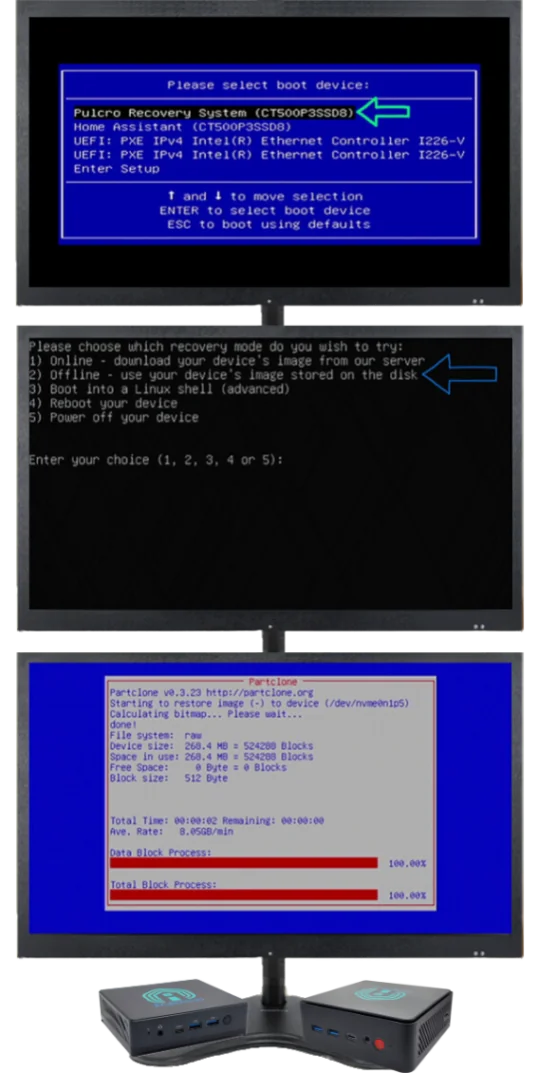
Pulcro TurnKey Mini PC recovery system process with options for online and offline recovery, displayed on multiple monitors.

Need to restore your Pulcro.io Mini PC to its original factory settings? Follow these quick steps to use the built-in recovery partition. Please make sure to back up your important files first, as this process will erase all existing data.

Step 1

Back Up Data: Save your personal files, as this process will erase everything.

Step 2

Access Boot Menu: Turn on your Mini PC. Press F7 at the Pulcro.io splash screen.

Step 3

Select Recovery System: Use arrow keys to choose “Pulcro Recovery System” and press Enter.

Step 4

Choose Recovery Mode:

  • Press 1 for Online Recovery
  • Press 2 for Offline Recovery (Recommended)

Step 5

Confirm: Press Y to proceed (or N to cancel). The system will restore and reboot automatically.

Step 6

Fix Boot Issues (if needed): Restart, press F7, enter setup, navigate to Boot tab, and ensure correct UEFI OS is selected. Save changes and exit.

✅ Tooltip (for any Proxmox-related Recovery):
Note: If reimaging from a Proxmox installation, you may need to run this tool twice. The first attempt may fail due to an LVM-related reboot requirement.

What is “Plan B”?

If your system needs to be recovered – whether due to a failed recovery partition, a replaced drive, or a fresh start – the Pulcro.io Plan B Recovery USB is your all-in-one solution.

This bootable tool allows you to reimage, diagnose, and restore your Pulcro.io TurnKey Mini PC using the same core tooling we rely on internally. It connects securely to Pulcro.io services to authenticate your device and deliver the correct factory software.

To get started, you’ll need a USB drive with at least 256MB of capacity. You can create your own recovery USB using our downloadable image – or skip the setup entirely and order a ready-to-use Pulcro.io Plan B Recovery USB, pre-configured and shipped to your door.

Once the USB is ready, simply boot your device, select the desired option, and press Enter. Whether you’re reimaging, running diagnostics, or connecting to support, the process is clear and guided from start to finish.

Skip the setup and get straight to recovery.

Order a pre-configured Pulcro.io Plan B Recovery USB, ready to use out of the box - no downloads, no setup, no guesswork.

Get the Ready-to-Use Recovery USB

Recovery method update

Pulcro.io is transitioning away from onboard recovery partitions in favor of the Plan B Recovery USB. This unified tool provides a more reliable and consistent recovery experience across all supported devices.

🚚 FREE U.S. Shipping (inc. HI & AK) for orders $100+ ➡ Shop Now!