

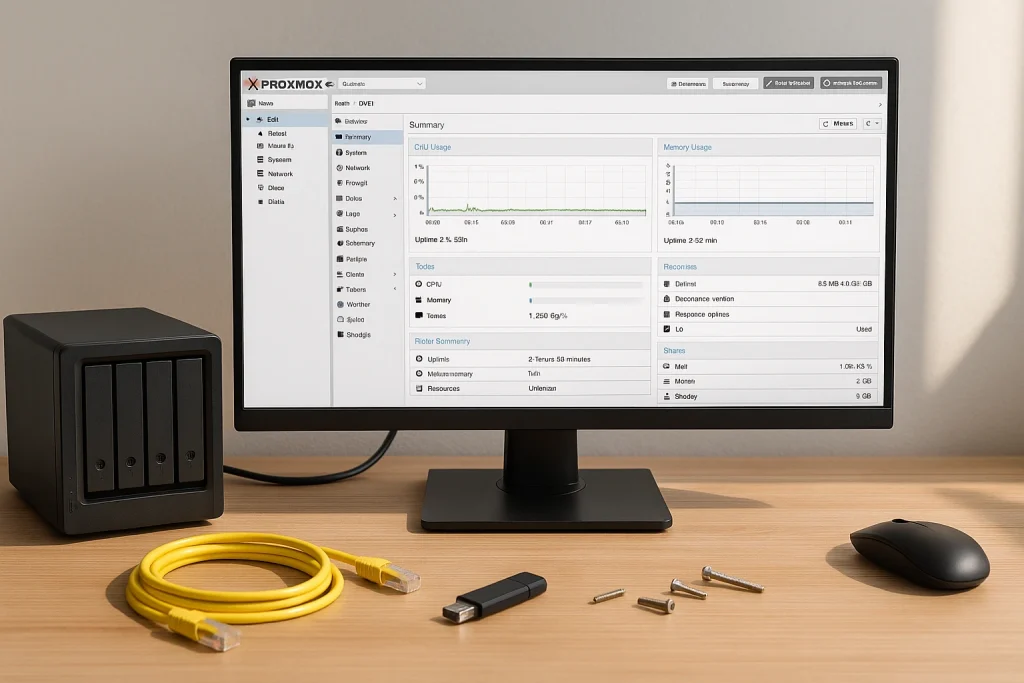
Build a compact, energy-efficient virtualization lab that scales. This friendly guide shows how to link three Pulcro TurnKey Two N150 mini PCs into a Proxmox cluster using their dual Ethernet ports and extra NVMe storage.
What is Proxmox and why use it?
Proxmox VE is an open-source virtualization platform that lets you run multiple virtual machines and Linux containers on the same hardware. A cluster links several nodes so you can share resources, live-migrate workloads, and expand over time without re-architecting your lab.
Why the TurnKey Two N150 is perfect for Proxmox clusters
- Intel N150 CPU – efficient quad-core performance for multi-VM setups.
- Dual 2.5GbE ports – clean separation of LAN/WAN and cluster traffic.
- Extra M.2 slot (NVMe only) – dedicate fast storage to extra VMs or backups.
- Quiet, compact chassis – small enough for a bookshelf, powerful enough for a lab.
Pulcro tip: we recommend using the second Ethernet port for clustering. Units ship with that port set to 192.168.68.1 by default, so give each node a unique address before you form the cluster.
Step-by-step: build a 3-node Proxmox cluster
1) Purchase your TurnKey Two Mini PC with Proxmox VE
Purchase your TurnKey Two with Proxmox VE preinstalled from Pulcro.io and be ready to go right out of the box!
2) Wire the networks
- Connect the first Ethernet port on each node to your LAN/WAN router or core switch.
- Connect the second Ethernet port from all nodes to a small, dedicated switch for the cluster network.
3) Set unique IPs on the cluster interface
Each unit ships with the second port at 192.168.68.1. Change it on every node so there is no overlap. Example for Node 2:
sudo nano /etc/network/interfaces
# Example: second NIC (name may be enp3s0 or similar)
auto enp3s0
iface enp3s0 inet static
    address 192.168.68.2
    netmask 255.255.255.0
For the other nodes, use 192.168.68.3 and 192.168.68.4, then restart networking or reboot.
4) Create the cluster
On Node 1, open the web UI at https://<node1-lan-ip>:8006 → Datacenter → Cluster → Create Cluster. Choose the second-port interface on the 192.168.68.x network and name your cluster (for example PulcroCluster).
5) Join the remaining nodes
On Node 2 and Node 3, go to Datacenter → Cluster → Join Cluster. Paste the join information from Node 1, select the same cluster interface, and complete the wizard.
Using the extra NVMe slot
- Host more VMs – dedicate fast NVMe storage to high-IO workloads.
- Local backups – schedule Proxmox backups to the extra NVMe for quick recovery.
- Tiered storage – keep OS on the primary drive and use the extra NVMe for data.
Great workloads to run on your cluster
- FreePBX – reliable VoIP PBX for small offices and labs.
- TrueNAS – a dedicated storage VM to serve SMB/NFS/iSCSI to your networked devices.
- OPNsense – a powerful firewall/router VM for advanced networking experiments.
Start building your cluster today
The Pulcro TurnKey Two N150 delivers the right mix of performance, ports, and expandability for a quiet, scalable Proxmox lab. Add three to your cart and grow from there.